




02 Nov Word Forms vs. PDF Forms: Accessibility Technologies for Data Capture
Forms built in Word and forms built in PDF differ in two important ways: what it takes to make them compliant with accessibility standards, and what they can do once they are built. In general, Word forms are easy to edit but limited in the field types and functionality available. PDF forms are difficult to edit without damaging compliance, but they offer far more versatility. The pros and cons of each follow, with a sample form in each format that you can download and open: the Word sample (.docx) and the PDF sample.
Word forms: advantages
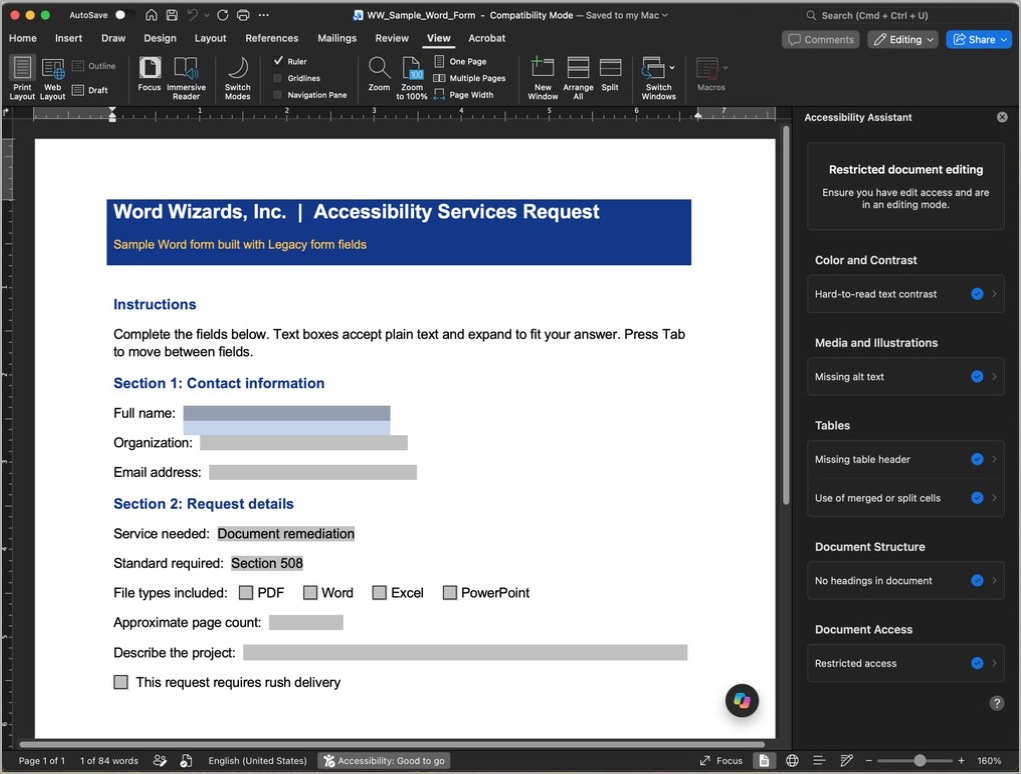
- Word documents can be edited. Form sections must be locked so that only the fields can be changed, but the creator can unlock a section, make edits, and relock it with little effort.
- Fields expand to fit their contents. Whether the answer is a few words or several paragraphs, the form adapts.
Word forms: limitations
- Accessibility requirements restrict Word forms to the Legacy field types, which means only three are available: a text box for plain text, a check box, and a drop-down menu.
- Form sections must be locked separately from sections containing instructions or other long passages of text (field labels are fine inside a form section). A complex form that alternates pages of instructions with pages of fields therefore needs many section breaks, which complicates page numbering and other section-based formatting.
PDF forms: advantages
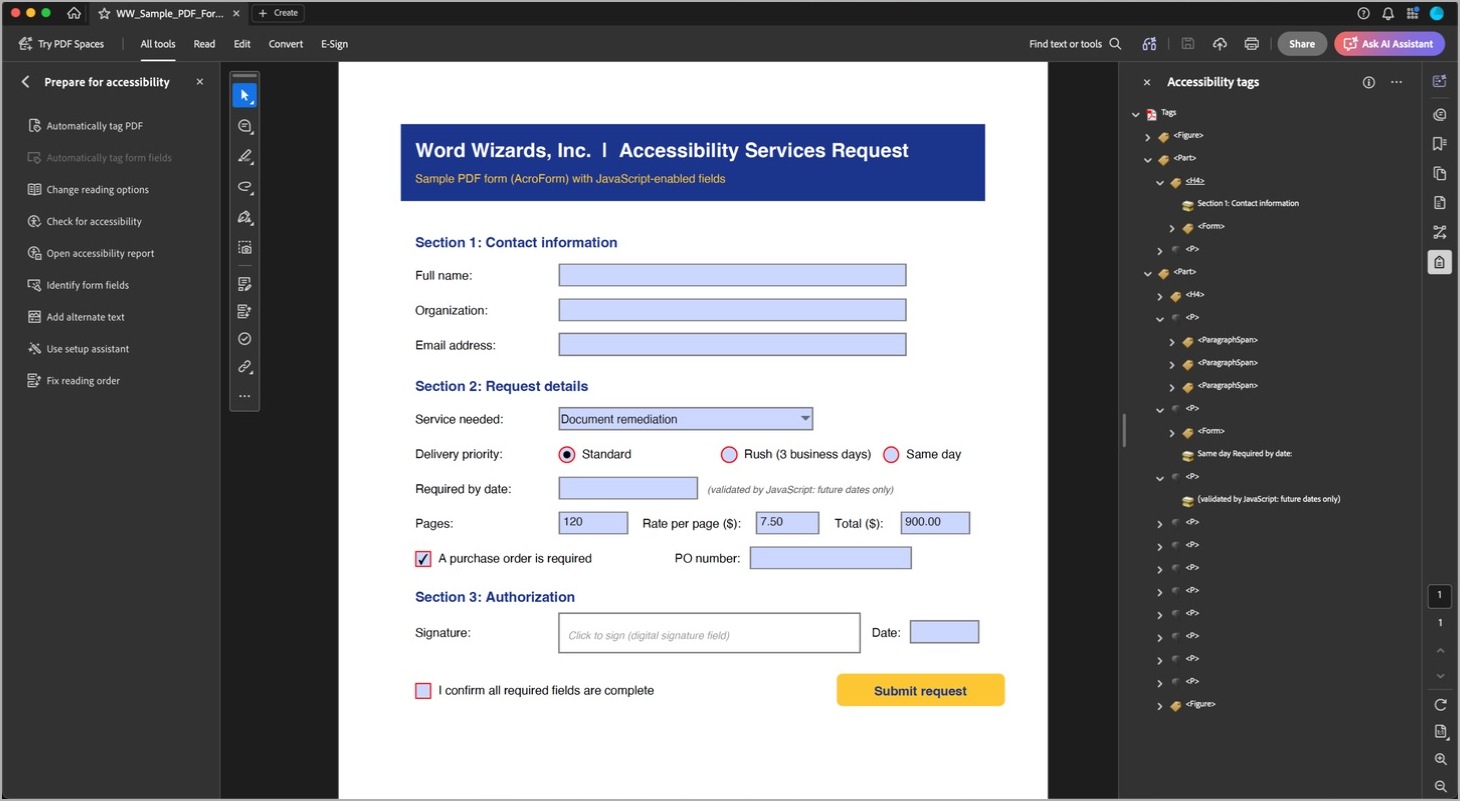
- A much wider range of field types, including radio buttons, signature fields, calendar widgets, and more.
- JavaScript. A PDF form can restrict a date field to a valid range, such as only dates after the day the form is filled out. It can require that mandatory fields be completed before the form is signed and submitted. It can perform calculations automatically, including sums and averages. It can make a check box control other fields, so that checking it opens them for input and unchecking it sets them to read-only so nothing is filled in by accident. JavaScript can build nearly any functionality you can imagine, short of changing the layout of the page. We should know: we have recreated Hangman, Minesweeper, and Tic-Tac-Toe, all as PDF forms.
PDF forms: limitations
- Editing the content on the page takes a great deal of work behind the scenes. Acrobat’s Edit PDF tool will usually destroy the tags in the area being edited, and spaces at the ends of lines may disappear, making the page less readable.
- Fields can be set to scroll when an answer runs long, but scrolling fields do not print well. LiveCycle can build dynamic forms that grow and shrink to fit their contents, but those forms do not contain tags and therefore are not compliant.
Summary
If a form needs to be dynamic and easily editable, Word is likely the right tool, with the caveat that any edit made after the form has been made accessible risks undoing some of that work. If the form needs more than simple text fields, check boxes, and drop-downs, a PDF form is the better choice.
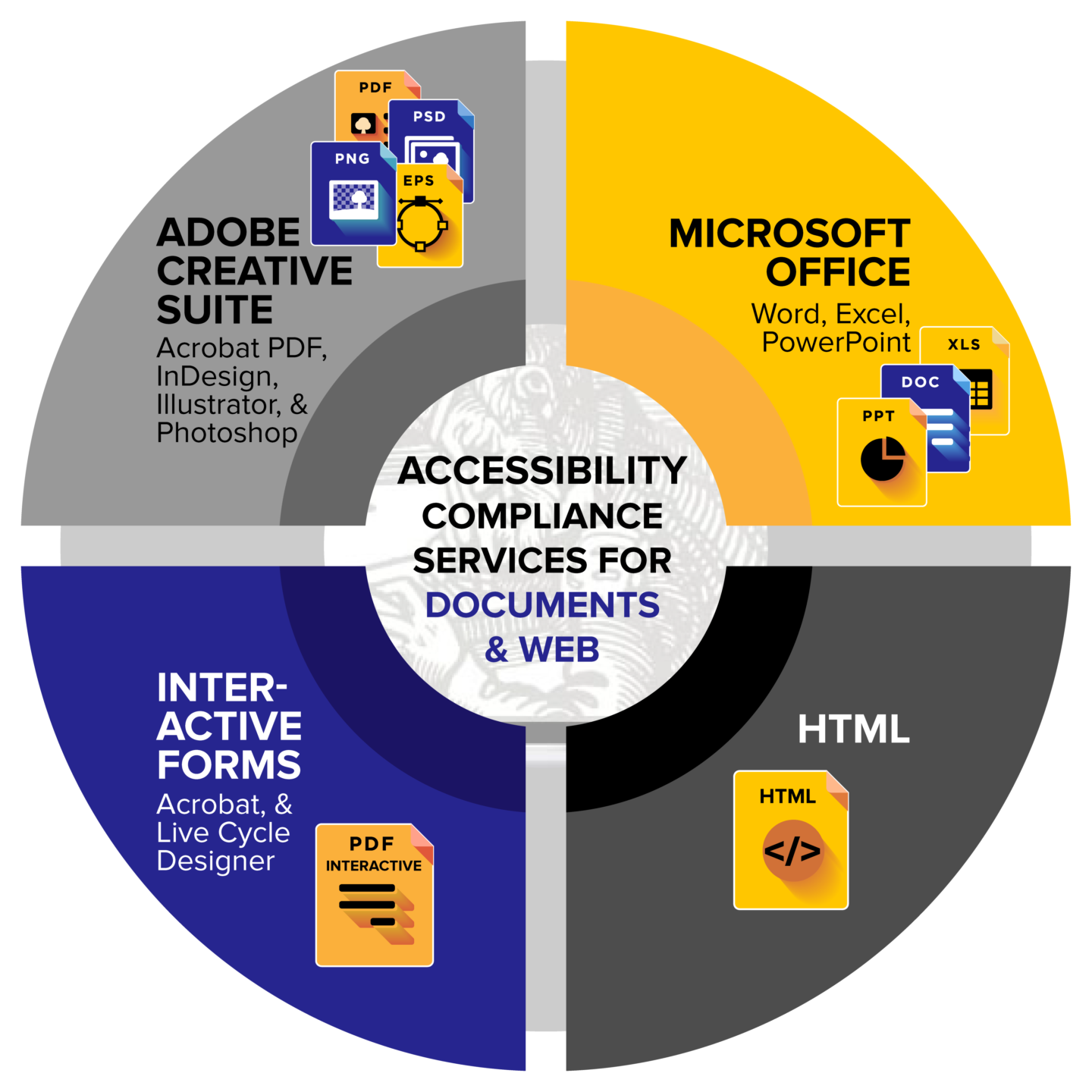
Word Wizards designs compliant forms in Word, PDF, and Excel that look professional and are clear to complete, and remediates existing forms that fall short. We also build LiveCycle forms and custom interactive forms, as well as internal forms that do not need to meet accessibility requirements, in any of these programs. Contact us to discuss your project, or call (301) 986-0808.